
Turn Your Lock Screen Into a Lead-Generating QR Code

It’s officially December, which means two things:
- Mariah Carey has entered the chat, and
- Holiday gatherings are in full swing, where insurance is definitely not the topic anyone is hoping to discuss.
This time of year means holiday parties, family gatherings, and plenty of chances for those “Hey, I’ve been meaning to talk to you about insurance…” conversations.
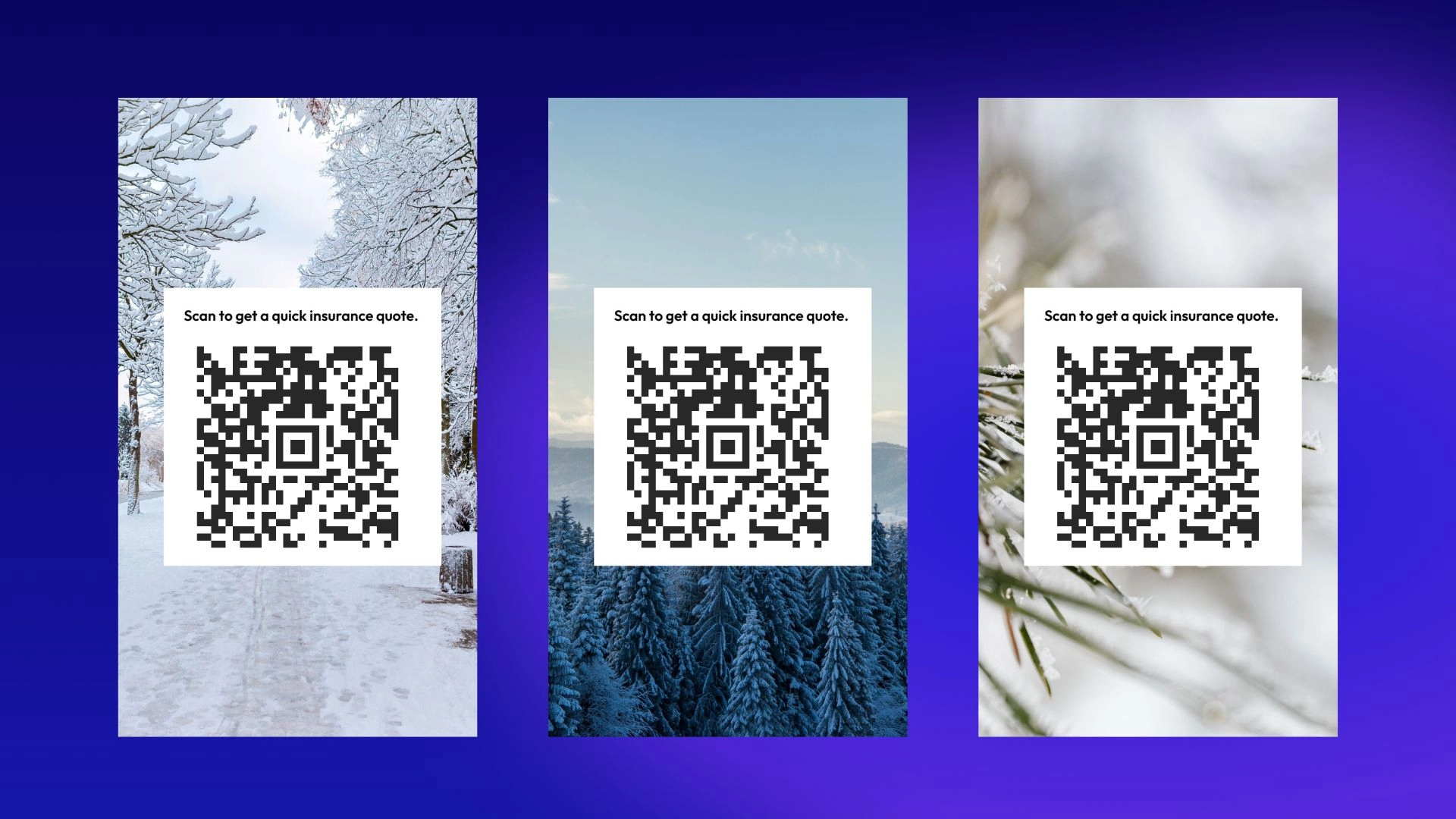
However, nobody wants to dive into coverage details when their brain is already checked out for the holidays. But those moments are valuable, and they happen a lot this time of year. So here’s a simple and festive way to make onboarding effortless, not awkward: a holiday-themed QR code lock screen that lets prospects get started in seconds.
Why This Works So Well
Instead of searching for your link or explaining how to get started, you can just show your phone and let the QR code do all the work. They scan. They’re in. You keep enjoying your evening.
It keeps the moment light and saves you both time, and it feels fun instead of salesy.
How to Set It Up
1. Download your Canopy Connect QR code
Go to your Canopy Connect dashboard and grab your personal QR code. This is the fastest way for prospects to share their information with you.
2. Pick a Festive Wallpaper
We’ve created a few options so you can choose the look that fits your style— cozy, elegant, or holiday-themed. Your choice.
3. Customize your lock screen in Canva
Head to canva.com or open the Canva app.
Then:
- Create a new design using the phone wallpaper template
- Upload your chosen holiday background
- Upload your QR code
- Move the QR code where it looks clean and scannable.
- Download the finished design
4. Set it as your lock screen
Now your QR code is always ready whenever someone wants to get started. No searching for links. No long explanations.
On iPhone (iOS)
- Open the Photos app and tap the image you created.
- Tap the Share icon in the bottom left.
- Select Use as Wallpaper.
- Adjust the image if needed, then tap Done.
- Choose Set as Lock Screen.
Your new QR code lock screen is live.
On Android
(Steps may vary slightly depending on your device)
- Open the Photos or Gallery app and select your image.
- Tap the More or Three Dots menu.
- Choose Set as Wallpaper.
- Select Lock Screen or Lock Screen Only.
- Adjust and confirm.
Your QR code will now appear every time you wake your phone.
Your Holiday Win Served Warm
Show your screen → they scan → lead captured → you go right back to celebrating all the non-work-related things.
A quick moment for you, a seamless experience for them.
Cheers to a festive December and to making insurance just a little bit easier for everyone this season.